
Drawers gives every project its own dock, its own space, and its own windows. Switch projects, switch worlds. Designed for maximum flow state.
Free · macOS 14+ · Local-first · No account
Drawers gives every project its own dock, its own space, and its own windows. Switch projects, switch worlds. Designed for maximum flow state.
A drawer is its own menu bar identity, its own dock, its own space. Pull open a drawer and all the project context together with no noise.
Don't shortcut to Figma — shortcut to the one Figma file that matters. A single channel instead of all of Slack. Three files instead of your whole Documents folder. Searching for resources invites distraction. Drawers keeps what you need right at your fingertips.
Need Chrome for three projects? In normal macOS, clicking Chrome from a new Space yanks you back to where it was already open — one window, all your tabs interleaved. The same thing happens with every app: Slack, your editor, Notes. Drawers gives each drawer its own window of every app, scoped to that project.
A simple three-finger swipe switches between projects. Or, select your project from the menu bar. Drawers manages macOS spaces for you, so you can be sure there's a drawer for each project
You do, though. Your projects live in the only place macOS can’t see: your head. Every app mixes them. Distraction isn’t a willpower problem — it’s a surface-area problem: the more apps, tabs, and channels in front of you, the more there is to pull you away.
And Spaces won’t save you — macOS ties apps to spaces, not projects to spaces, so clicking an app from a new Space yanks you back to where it was already open. Focus modes don’t fix it either. That’s a structural problem.
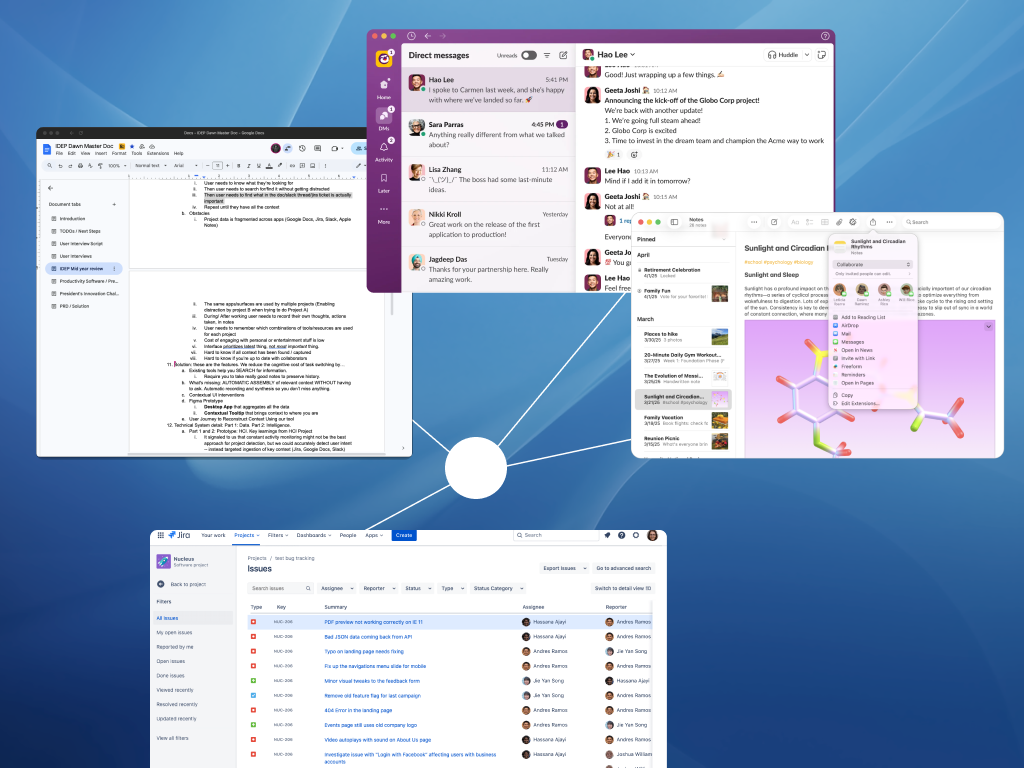
Slack, Jira, Docs, Figma, Notes, inbox — you’re the only thing holding it together.
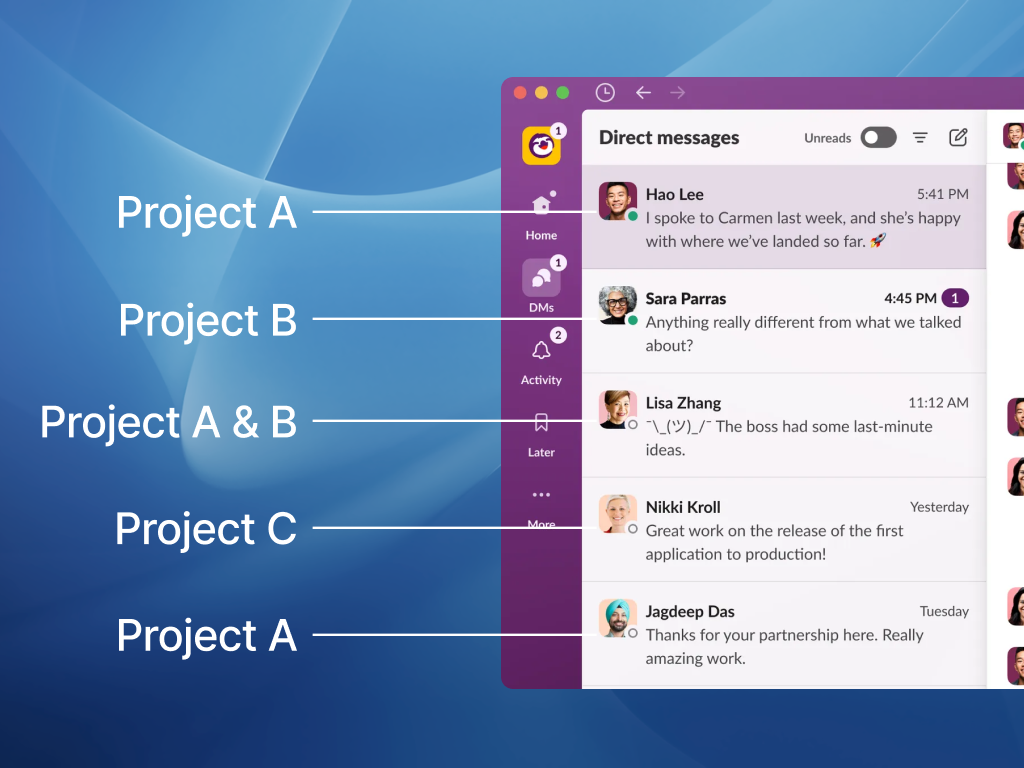
Every shared app mixes all your projects. Sidebar, tab strip, inbox — interleaved.
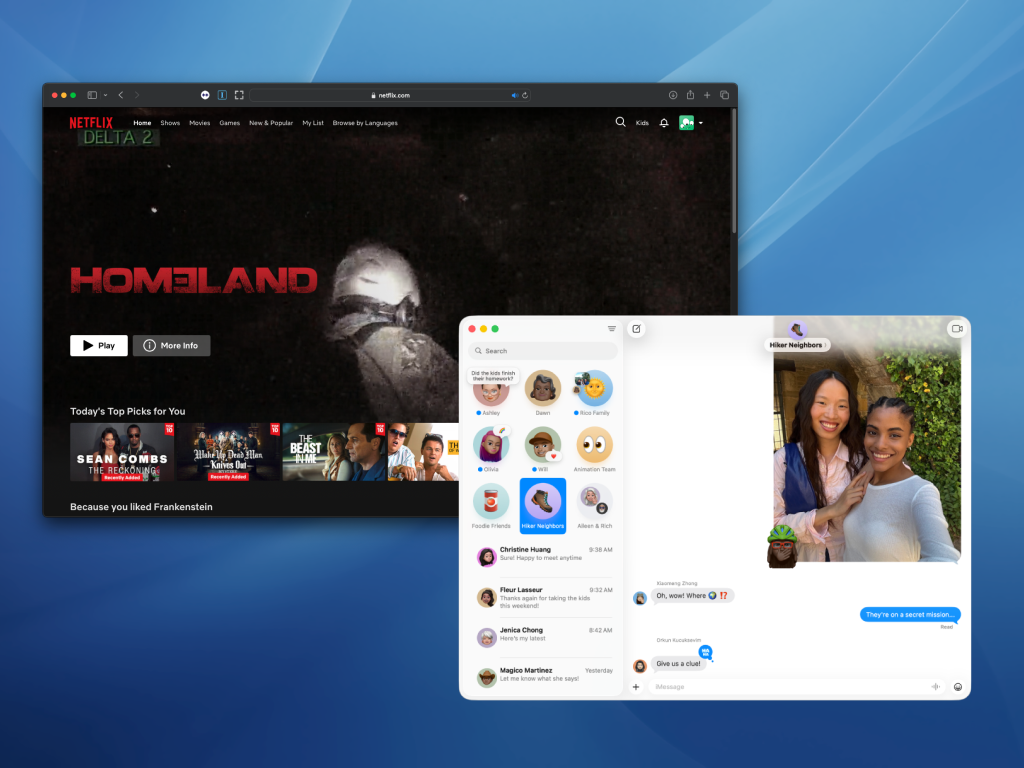
YouTube is one click. Your spreadsheet is one click. The dock sees no difference.
Each time you switch projects, your brain rebuilds the picture from scratch — pulling Slack, the doc, the Figma, the half-formed plan back into one frame. It’s not free. The brain pays for prediction, and a fragmented day forces it to pay over and over. That’s the cost you feel as exhaustion — not the work, the rebuild.
Drawers gives macOS what it’s missing: projects. Every project gets its own drawer — its own dock, its own apps, its own world.
Spaces tie apps to spaces, not projects to spaces. If Slack is open in Space 1 and you click Slack from the dock in Space 2, macOS yanks you back to Space 1 — because the system assumes one app belongs to one place. That breaks the moment you have two projects that both need Slack, or Chrome, or your editor: you end up sharing one window across projects, or fighting the OS to keep them apart.
Drawers flips it. Each drawer is a project, and each project gets its own dock — populated only with the things this project actually needs. You can add specific links to the dock: a single Slack channel instead of all of Slack, the three files for this project instead of your whole Documents folder, the two websites you actually use. And every app you open from a drawer opens in its own project-scoped window — open Chrome in two drawers and you get two Chrome windows, each pinned to that project's conversation, instead of macOS dragging you back to the other space. Spaces puts apps in boxes. Drawers puts projects in boxes.
Distraction usually isn't a willpower problem — it's a surface-area problem. Open Slack to message one person and you see twelve other conversations. Open Chrome and your other project's tabs are right there. Drawers shrinks the surface to just what this project needs: the channels you pinned, the files you pinned, a browser window with only this project's tabs. Less in front of you means less to pull you away, and getting back into a project takes seconds because everything is already laid out where you left it.
Yes. If the app runs on macOS and has files, links, or channels, it can live in a drawer. You don't install anything app-side — Drawers points at things that already exist (a file path, a Slack URL, a website) and opens them in a window scoped to the current project.
No. Drawers sits on top of macOS — it uses Apple's existing Spaces and menubar APIs and coordinates them around projects. Your apps, files, and shortcuts don't change. You add a drawer when you want one and ignore it when you don't.
Drawers is local-first. Everything lives on your Mac — no account, no sync, no server. Drawers stores pointers (paths and URLs) to things you already have; it doesn't copy your files or read your messages. We collect light anonymous usage stats (drawer count, switch frequency — that kind of thing) to figure out what's working. No file contents, no message contents, nothing personally identifying. Opt-out toggle in settings.
Yes.
We built Drawers because we were tired of ending days exhausted from context switching and constant distraction.
The research is clear: people love being in the flow. But normal macOS doesn't invite flow; it forces distraction and work fragmentation.
Existing tools treat symptoms. Focus modes nag, site blockers fight, Pomodoros count. None of them fix the thing underneath — that your OS doesn't know your projects, and can't help you get and stay in the flow. Distraction isn’t a willpower problem; it’s a surface-area problem. The fix is structural: shrink what’s in front of you to just this project.
We don’t want to make you more productive. We want to get you in the flow so you can feel more alive!


Drawers is a Mac app, but you’re on your phone.
Pick the way that gets it from here to your computer fastest:
Open drawers.computer in Safari on your Mac. The download starts on its own.